
LESSON 06Customization
Make Tuolen feel like your brand
Shape the welcome, suggested questions, colors, identity, and chat launcher with a careful preview-first workflow.
What you’ll take away
- Write a useful greeting and suggested questions.
- Preview colors, header identity, and message text.
- Choose a launcher label and placement that work on mobile.
- Locate brand assets and review each section before saving.
Make it your own.
Open your agent and select Messenger. Review Home and content and Appearance before saving each section.
Try this in Tuolen Sign-in and the appropriate workspace access are required.Read the full transcript
Prefer to read? Here’s the narration, organized by chapter.
A messenger that belongs
Your support messenger should feel like part of your business, not a stranger on your website. Let's make Tuolen feel more like your brand, using the real controls and preview. We'll stage the changes without publishing them.
Write a helpful first impression
Open your agent, then Messenger. In Home and content, start with the greeting and supporting text. Keep it warm, but useful. For Cedar Store, we introduce the shop and say what customers can ask about. The preview shows how that welcome will read to a visitor.
Add useful suggested questions
Suggested questions make it easier to begin. The short label is what the visitor sees; the full prompt is what the agent receives. Here, Returns opens a specific question about unused items. Choose a few common needs, rather than trying to put your whole help center on the first screen.
Preview colors and identity
Next, open Appearance. You can start from a preset, then adjust the primary, background, and text colors. We're previewing a deep green for our fictional shop. Keep enough contrast for people to read comfortably. Your brand should make the conversation clearer, not harder to use.
Give the header a recognizable name, like Cedar Store Support. Review the message placeholder and the welcome message too. These are small details, but they set expectations. A friendly greeting is good; a promise of instant human help is not, unless your team can actually deliver it.
Choose your chat launcher
Choose how people open the chat. The launcher can use an icon, text, or both, and you can choose its position. In this preview, we're trying an icon with the label Ask Cedar. Pick a position that doesn't cover important page controls, especially on smaller screens.
Know where your brand assets go
Brand Assets gives you separate controls for the header icon and launcher image. Use a clear, recognizable asset that still works at a small size, and follow the file limits shown in the app. We're showing these upload controls, not uploading a new file or changing a live website.
Review before publishing
Before you save, review the whole experience: greeting, colors, labels, contrast, and launcher placement. Home content and Appearance have their own save controls, so check the section you're editing. After an approved save, test the actual website on desktop and phone. A preview isn't the final deployment check.
Make every detail feel familiar
Make it recognizable, make it readable, and make it easy to ask for help. That's a branded messenger doing its job. Visit Tuolen dot com.
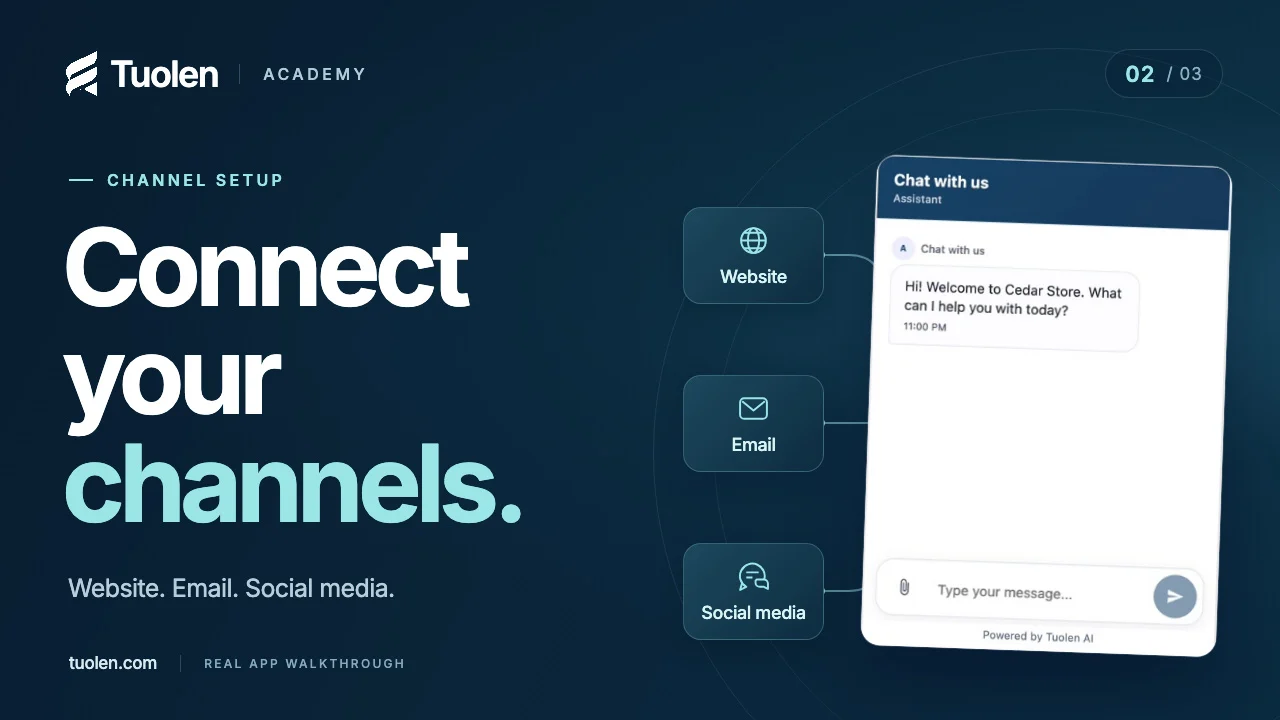 Duration 3:10
Getting startedLesson 02
Connect your customer channels
Explore website embeds, email, messaging, and social media—and the checks to make before going live.
Watch tutorial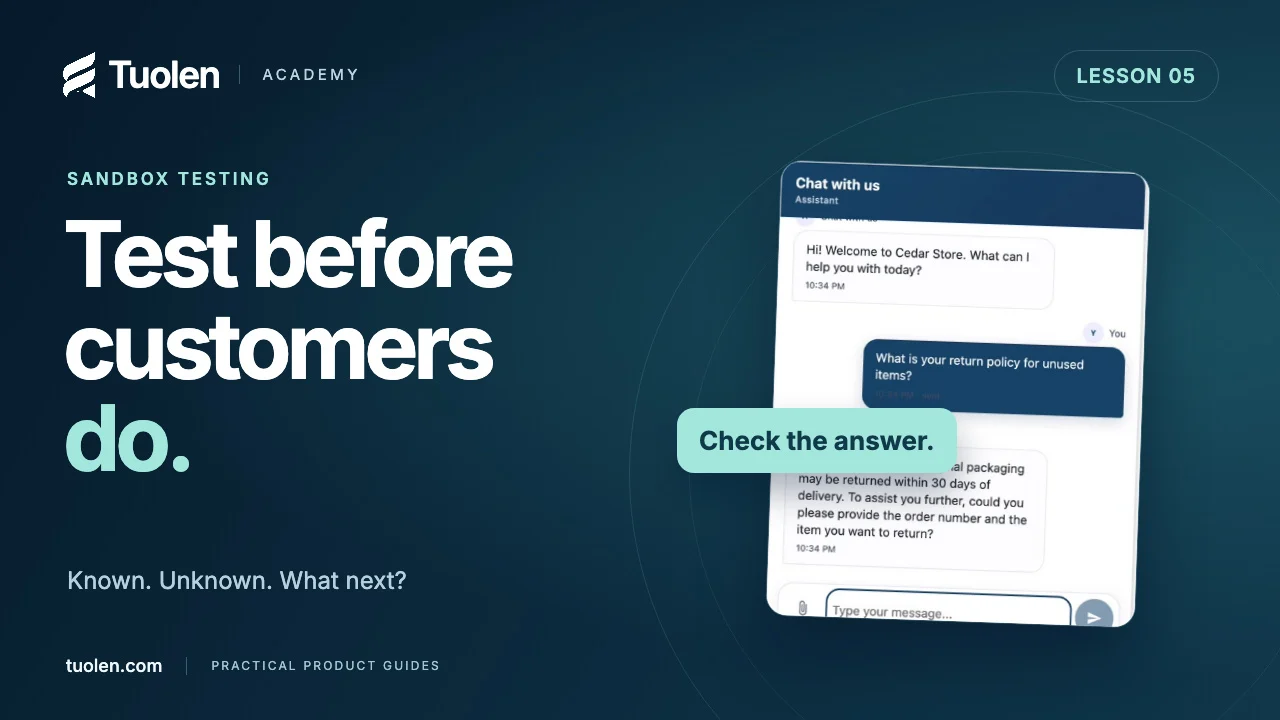 Duration 2:45
Daily workflowsLesson 05
Test your AI agent before customers do
Build a small, repeatable test set for known answers, missing knowledge, policy exceptions, and requests for a person.
Watch tutorial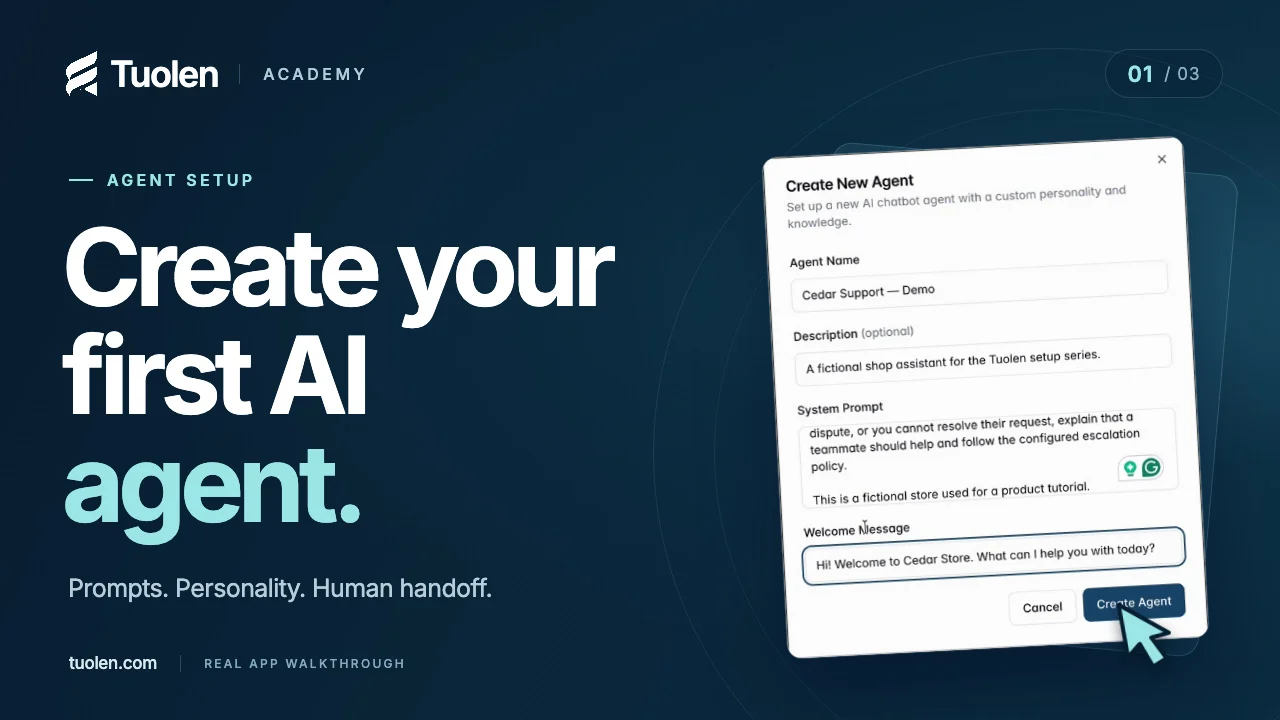 Duration 2:44
Getting startedLesson 01
Create your first AI agent
Give your agent a clear job, a helpful personality, and a plan for when a customer needs a person.
Watch tutorial